
PX & CX System Installation & Setup

 -
- -
-
 -
-  -
- 






Need support ?






Got issues? Click the above Tech Help Q & A

Please check the above to see video setup instructions
VisTrak problem solving.
Click the below button to find solutions to common VisTrak user issues

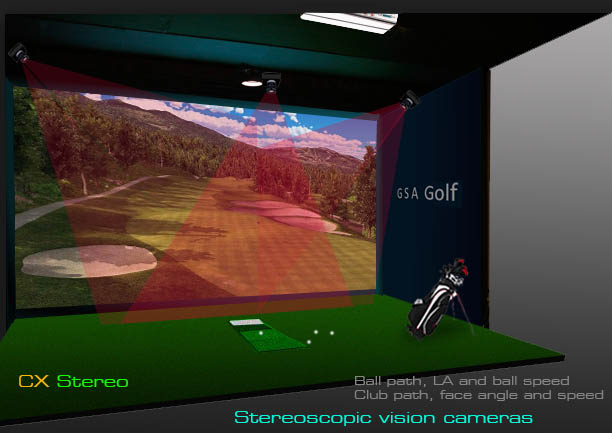

Click above to read about the CX and VisTrak Stereo setup

PC requirements.
GSA Golf simulation game software is high-end graphics software that requires a good gaming PC in order to run up to speed and reliably.
It is recommended that your PC feature the following:
1. A good graphics card with at least 1 GB of video memory (examples include: ATI radeon 6950 or NVIDIA GTX 580 or greater)
2. Fast CPU ( preferably 3.8 Ghz or more)
3. 6 to 8 GB of CPU RAM
It is possible that the system will run on a PC with lower specs but we cannot guarantee this.
Note: Laptops - due to the above rather high spec requirements - are generally not suitable.
For new installations, download and run the fulll version CP software from your supplied download link
Note that the full version installation will overwrite any user settings if you have had any previous GSA Golf CP installations
Download standard configuration files hereHere
GSA Golf Game software download
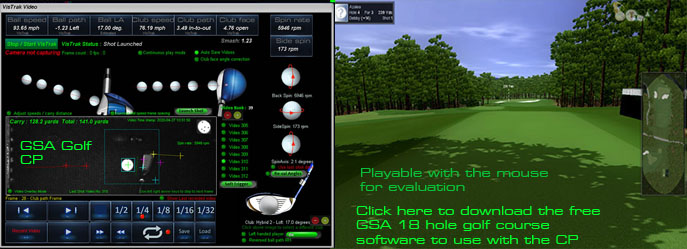
Warning! if you already have the full version GSA Golf /RedChain software installed, downloading this free single course version will prevent the full version from running correctly
Note: If you encounter a windows error message stating that it could not find d3dx9_30.dll when starting GSA Golf,
download and copy the d3dx9_30.dll to your windows\SysWOW64 folder.
GSA Golf camera Viewer and driver software
Camera Driver 2.11 33MB
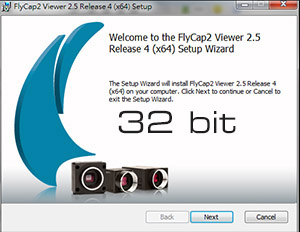
Your GSA Golf cameras require that the camera drivers are installed. If you missed this during the initial installation process then download and install the above linked software
The following install programs should be started:
1. GSAGolfInterfaceSetup.exe This is the Control Panel
2. GSAGolfDemoSetup.exe The RedChain 18 hole course software
3. FlyCapture_2.x.x.x_x86.exe The camera drivers and SDK. Click on anyone of the these
4. vcredist_x86.exe The MicroSoft Visual C redistributable files
Note! If you encounter a windows error message stating that it could not find d3dx9_30.dll when first running the GSAGolf game software (RedChain)
then copy the d3dx9_30.dll on the disc to the windows\SystemWow64 folder.
GSA sensor and camera club and ball track systems can be run with 5 different types of golf simulation software: ProX, TGC, Perfect Parallel, RedChain and E6.
Installation of these golf game software packages just requires that you insert the approriate golf game discs.
 Go to the TGC page to see how to install TGC.
If you have not purchased the full version GSA Golf software then the supplied DVD contains the E6 and RedChain single 18 hole course software .
When running the FlyCapture install program please observe the following:
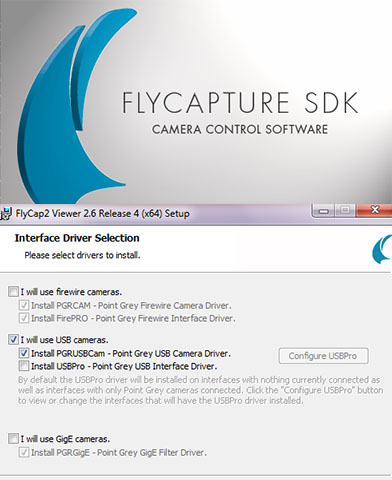
The above SDK installation program FlyCapture_2_4_3_11_x86 is located on the supplied DVD and must be started before any cameras are connected.
All camera drivers are now installed automatically with this new Camera Control Software
Select "I will use USB cameras" and select "Install PGRUSBCam driver" when prompted.
Do not select the "USBPro" option !
If you have previously run this install program and think you may have selected the USBPro option then you must uninstall the SDK and re-run it
Step 1. ProX install
(only required if you purchase the ProX Software)
Insert the ProX DVD into a drive on your PC to start the software installation process.
If the DVD doesn't auto start after 60 seconds when inserting the DVD into the PC then double click the GGSProXSetup on the DVD from the Windows Explorer.
The installer will also start the GSAGolfTrialSetup and the GSAGolfInterfaceSetup.
You should see 3 new icons on your desktop window. GSA Golf Trial, GSA Control Panel and ProX -
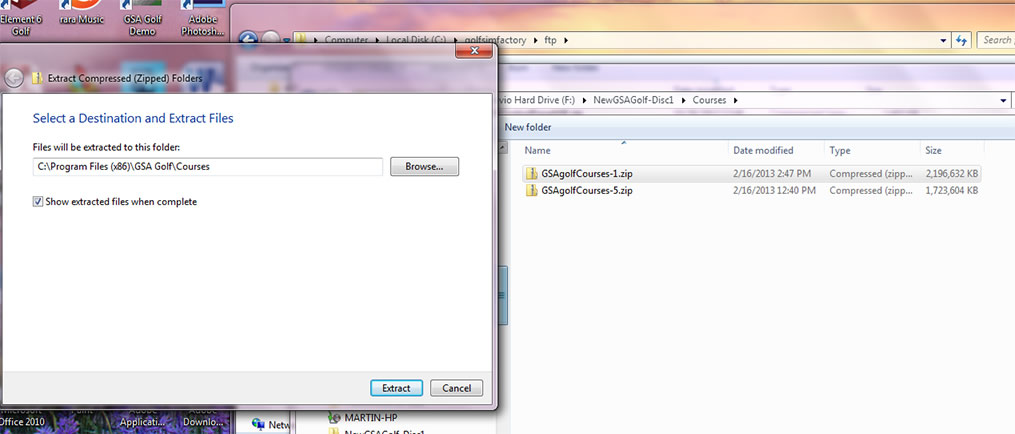
Using the Windows Explorer program, navigate to the files on the DVD.
Right click on a zip file and select "Extract" on the drop down menu. This will open the "Select a Destination and Extract files" window. (as shown above).
Click on the "Browse" button and navigate to the "Courses" sub folder in the main folder where GSA Golf was installed on your PC.
This is usually "C:\Program Files(x86)\GSA Golf \ Courses"
Now just click the Extract button.
Repeat this process for all 6 zipped course files.
Step 2
GSA Control Panel
GSA Control Panel is an interface program between game software and the club and ball tracking systems.
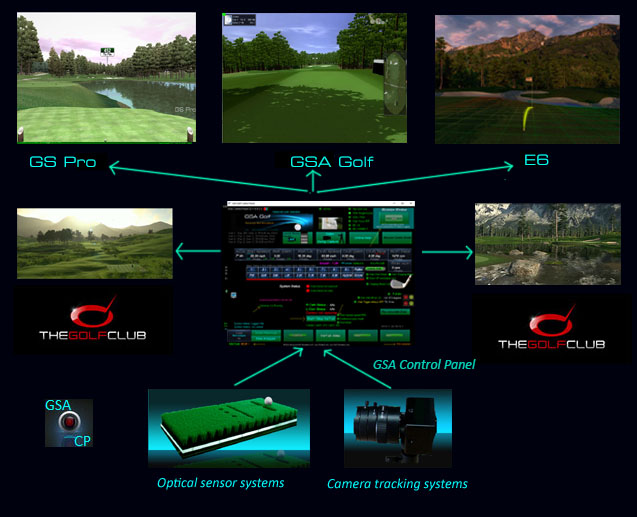
All game software (ProX, RedChain, TGC and E6) software require that the GSAGolf Control Panel program to run in parallel with it to communicate with GSA tracking systems.
Control Panel video
Step 3.
System configuration and setup
From the Windows desktop, start (double click) the GSA Control Panel and go to the Setup window.
The GSA Golf Control Panel needs to be configured to whatever sensor and/or camera systems you have connected.
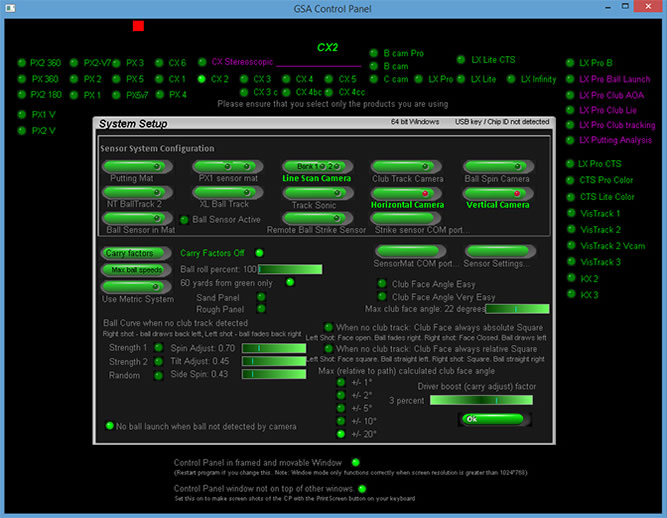
The Sensor System Configuration section should show what optical sensor systems and what cameras are being used.
Use the product Presets at the top and bot sides of the window to set these automatically.
Select the product you have purchased. e.g. CX2, CX3 , CX4, PX2, PX3, px4 or PX5 if you have purchased any of these products. Note that the F1 full simulator uses the PX4 system.
Step 4.
 --------
Connecting the PX club tracking sensor mats
(only required if you have purchased the PX1 or PX2 sensor mat)
Note that F1, PX3, PX4 & PX5 systems use PX1/2 club tracking mats
Please note: PX1 and PX2 optical sensor club tracking mats are not supplied with the CX1, CX2, CX3, CX4 and CX5 camera systems.
If you have purchased one of these models then the hitting mat supplied with the CX3, 4 and 5 models is a trigger mat and doesn't required any specific software installation. You can therefore skip this part (Steps 4 and 5) of the installation.
The PX sensor mats are connected to the PC via a single USB cable.
Important note: Do not use an ACTIVE USB cable with the PX2 sensor mat. Just use regular non-active USB cables and extensions
When first connecting the mat to the PC you will see the following messages showing the USB serial driver being installed.
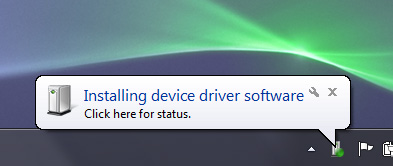
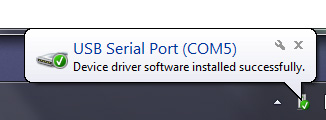
After this process disconnect the sensor mat again to proceed to the next process.
Step 5.
(only required if you have purchased the PX1 or PX2 sensor mat)
Microsoft Serial BallPoint disable
Windows still has the annoying habit of automatically installing a Microsoft Serial BallPoint mouse when any Serial device is first connected to the PC.
The Microsoft Serial BallPoint mouse has to be disabled before you can use either the PX or FX sensor mats.
To do this open the Windows Device Manager before connecting your sensor mat to the PC and do not start either the GSA Control Panel or the ProX software.
(See instructions below to see how to get to the Device Manager. if you don't know how to do this)
Re-connect the sensor mat to the PC.
( Note: You may find that the Windows mouse cursor is moving occasionally during this procedure.)
You will see that the Device Manage has updated itself with the new devices after connecting the sensor mat.
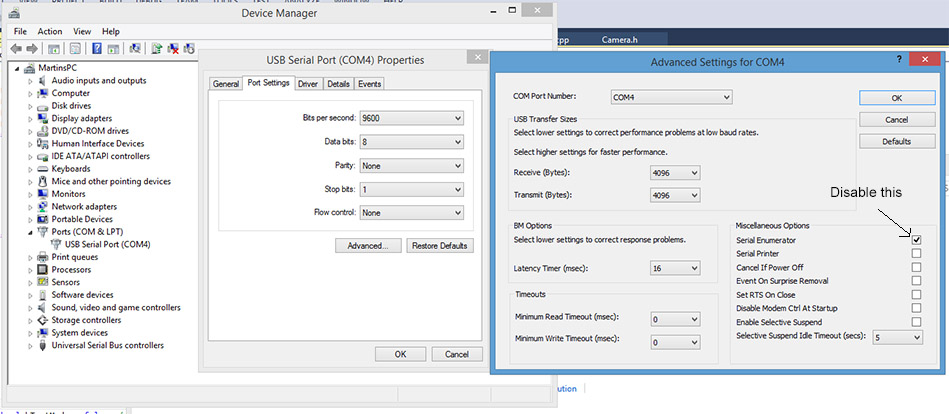
Click on the "Ports (Com & LPT)" item, click on the "USB Serial Port(COM)" item, Select "Port Settings" then "Advanced...." then disable the "Serial Enumerator" setting. i.e. so that there is no tick in the box - then click OK.
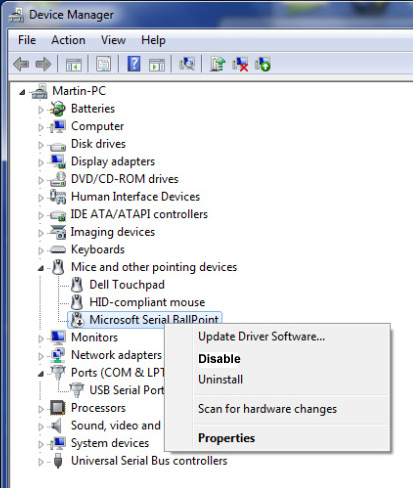
An alternative method of disabling the serial BallPoint Mouse is to go to the Mice and other pointing devices, right click on the Microsoft Serial BallPoint device and select Disable.
Ensure to select Disable and not uninstall otherwise Windows will automatically install another one the next time you reboot the PC.
Step 6.
COM port setting for the PX1 or PX2 sensor mat
Note: only required if using a PX sensor mat. Skip this step and step 9 if using CX camera systems only.
In order for the PX sensor to communicate with the host PC via the serial connection, the correct COM port must be selected in the Sensor Mat COM port window.
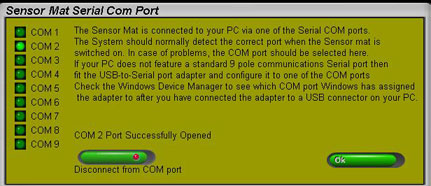
This COM port selected in this window must correspond to the COM port shown in the windows Device Manager
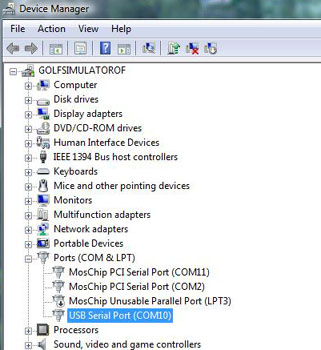
Go to the Windows Device Manager and click on the Ports (COM & LPT) item to see which COM Port windows has assigned the serial port on the sensor mat to.
The above image shows that the PC has two PCI serial ports and one USB Serial Port.
Sensor Mat Serial adapter COM port assignment
If you find that the sensor mat serial adapter has been assigned to a COM port greater than 9 or you want to change the com port then you can re-assign the com port number as follows:
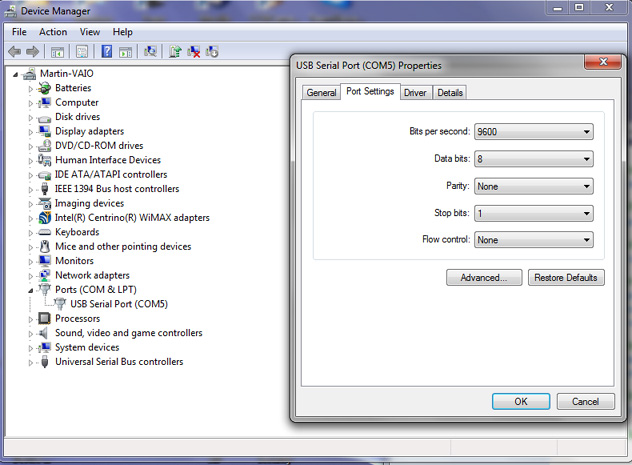
Right mouse click on the USB Serial Port and select the Properties item . From the Properties window Click on the Advanced ... button.
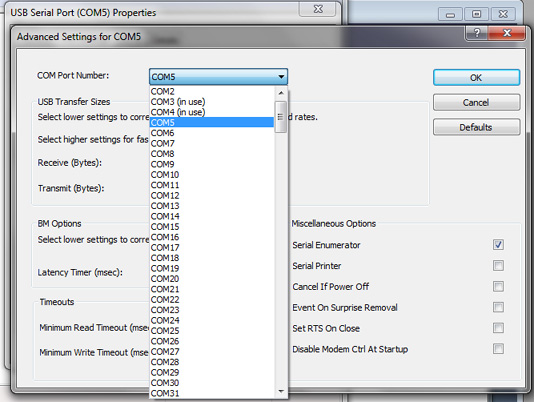
Select the desired COM port number from the drop down box.
How to get to the Windows Device Manager
In Windows 10 just type in "Device Manager" in the "Ask Me Anything" box at the bottom left side of the Windows desk top screen.
In Windows 8 go first the the Control Panel
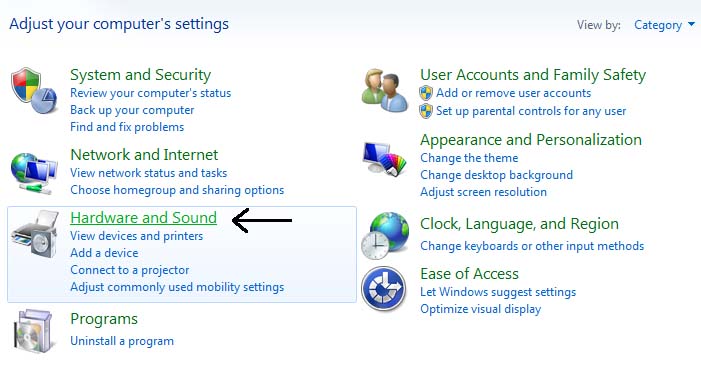
Click Hardware and Sound
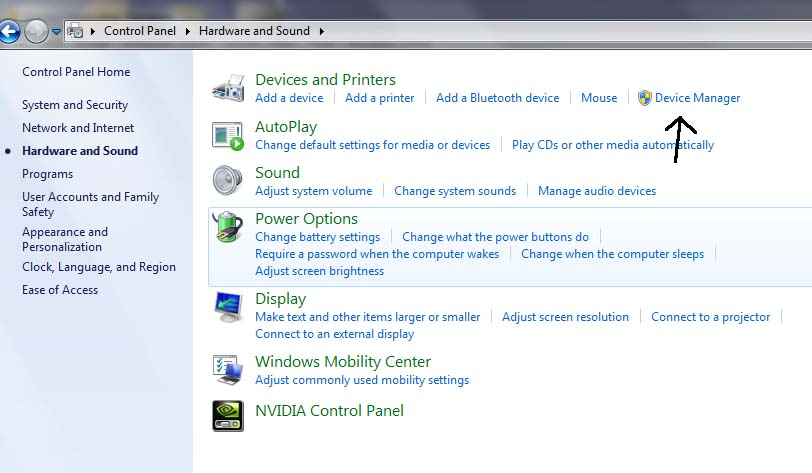
Click Device Manager
Once you know which COM Port number to use, go back to the Sensor Mat COM port window, select the same port number and click the Connect to COM Port button.
You should see that the port has been successfully opened. (The button text will then change to Disconnect).
This procedure has only to be made once. From then on, the system will automatically connect to this port.
Step 7.
IR and halogen Lighting 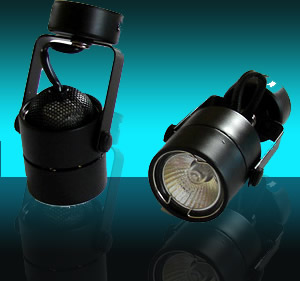
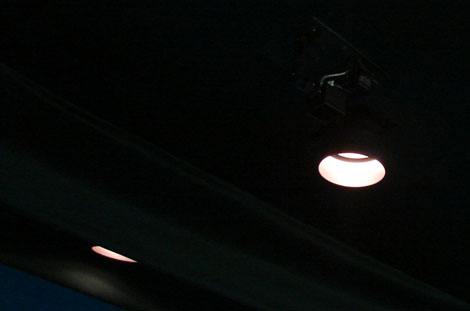
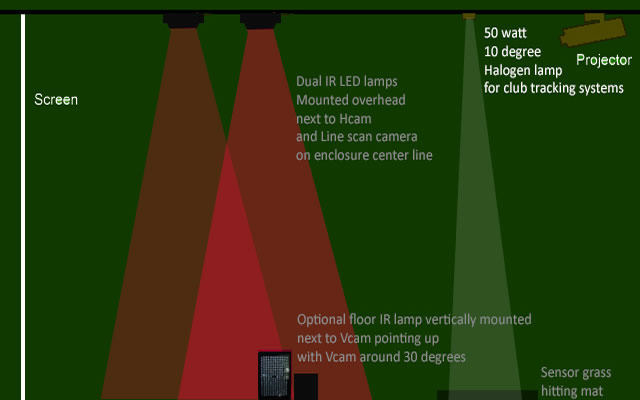
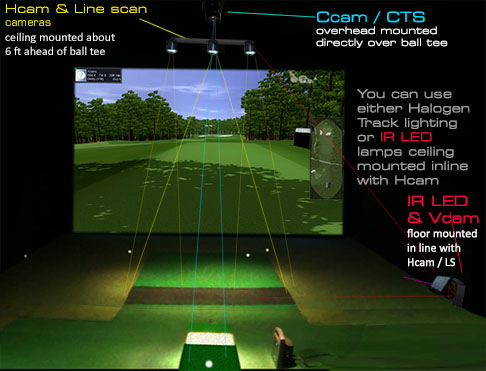
GSA camera systems require either IR LED lamps to illuminated the ball and optical sensor systems like the PX1 and PX2 require an overhead lamp to function.
The above image shows the complete recommended lighting setup for camera setups.
Important: The PX2 club tracking lamp must be a spot beam 10 to 25 degrees 50 watt and should be mounted directly above the PX sensor mat.
Step 8.
Testing the GSA PX1 or PX2 Sensor mat
Restart GSA Control Panel.
You should then see the Sensor Mat Detected message at the bottom left hand side of the screen

-
Both the sensor mat and camera triggers and or sensor ball tracks require an overhead halogen spot lamp light source of between 50 and 70 watts to function
and there should not be too much ambient light in the room.
Ensure that the overhead light spot is directly above and pointing directly down on to the sensor mat.
Go to the Setup Window again and go to the Show Sensors window.
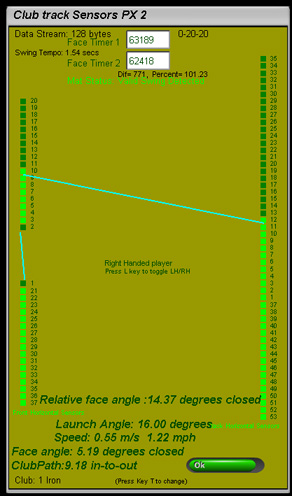
The above part screen shot shows the sensor mat sensors.
Note that the PX1 mat does not feature club path sensors so these will not be shown as illuminated in the sensors window.
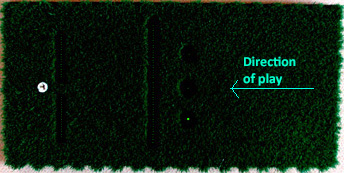
When passing a club over any one of the 3 reset sensors (just 1 reset senor in the PX1 mat) at the back of the mat, you should see all sensor indicators in the window should go dark green except the club face timer sensors 1 and 2.
You should also see that numbers will be changing in the club face timer windows.
When passing a club head over the sensor mat you should see that the corresponding sensor indicators in the window are being lit.
When making a swing you should see the Valid Swing Detected with the associated club head information (ie club head speed, path and club face angle).
If you are only using a GSA PX2 or PX1 Sensor mat, you are now ready to play.
Remote ball strike sensor
The remote ball strike sensor is used in systems that either only use camera ball tracking cameras (e.g. CX2 model) or only an optical sensor club tracking mat (e.g. PX2) to prevent inadvertent ball launches.
Inadvertent ball launches can occur when using just a sensor mat when tee-ing up or waving an object (a club or your hand) over the sensors.
When using just ball tracking cameras (like with the CX2) then inadvertent ball launches can occur when players move around in the field of view of the cameras while holding a club to pick up balls lying around in the enclosure.
The remote ball strike sensor prevents this by sensing a ball strike acoustically.
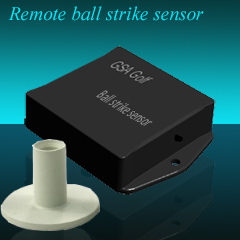
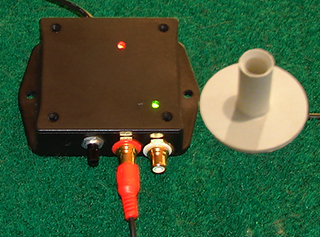
The sensor is in a rubber tee holder that should be embedded in the flooring turf or mat near the hitting area. In the case of the CX2 system, embed the unit near the putting area so that it picks up putts as well as full shots.
Make a hole to fit the tee holder in the grass turf carpet. Cut the tee holder down so that it is flush with the surface of the carpet or mat.
The unit is connected to the PC via a USB cable and has it's own COM port.
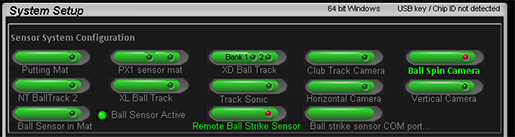
When using the strike sensor, select the Remote Ball Strike Sensor option in the Setup window of the CP and select the Ball Sensor Active button.
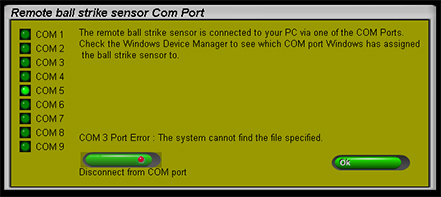
After connecting the unit to a USB port on the PC, check the Windows Device Manager to see which COM port it has been assigned to.
Then go to the Ball Strike Sensor COM port window - from the Setup window in the CP - and select the appropriate COM port.
A sensitivity dial is on the side of the unit to adjust the sensitivity so that it picks up all shots. LEDs indicate power and trigger pulse.
PX2 Setup Video
GSA Control Panel
The GSA Control Panel is an application that monitors all GSA camera and optical sensor ball and club tracking systems
and should always be ran along side any of the 3 golf game programs (i.e. ProX, TGC, GSA Golf or E6).
All optical sensor serial I/O, camera image grabbing and processing is performed by the GSA Control Panel.
Ball and club data captured by the GSA Control Panel are passed on to golf game that is currently running. (i.e. either ProX, GSA Golf or E6)
GSAGolf Control Panel is not normally visible during game play. It is a process that runs in the background.
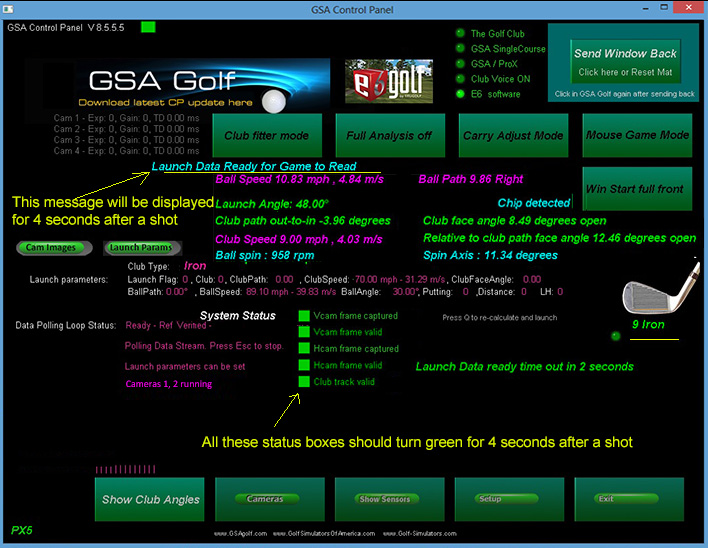
The above screen shot shows the GSA Control Panel's main window.
When the control panel detects a valid shot from any of the ball or club tracking systems it passes the shot parameters via a shared memory area on the PC to the game applications.
These parameters, such as ball speed, launch angle, ball path, club speed, path and face angle etc, are shown in larger pink and green text.
When the game application receives these parameters it calculates the ball trajectory and launches the ball.
The game application will then launch the shot using these parameters to calculate the trajectory.
-
When your system is connected to the PC you should see - depending on what system you have - that the sensor mat has been detected and the cameras are running. This information is shown at the bottom left of the screen.
You will notice a small green square box at the top left of the screen. This box indicates that the connected tracking systems are running and ready.
Should this box turn any other color then this indicates a system is not running correctly and that the system requires attention to resolve the fault.
This system indicator box is also visible in the game applications during play.
-
Ordinarily the GSA Control Panel is not visible during game play. It must, however, be started before play can begin. After starting the Control Panel and you see the green box you should click the Send Back button.
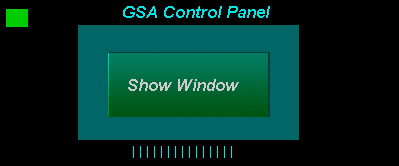
This will minimize the window size so that you only see the above screen at the bottom left of the screen. You can then see your desktop and can start one of the game applications.
-Ball path ratio of club path and face angle for PX2 or Ccam users
If you are using just club tracking without ball tracking - i.e. PX2 or Ccam only - then the ball's direction is calculated from the club.
In the new CP you will see a new slider bar in the Setup window that controls the ratio of club face and club path that is used to calculate the ball path.
(actually this bar has been in the CP for some time but was hidden in the sensor settings window before)

If the slider bar is set to 100% of the Club Path then the ball path will follow the club path. If set to 100% of the Face angle then the ball's direction will be the same as the club face angle.
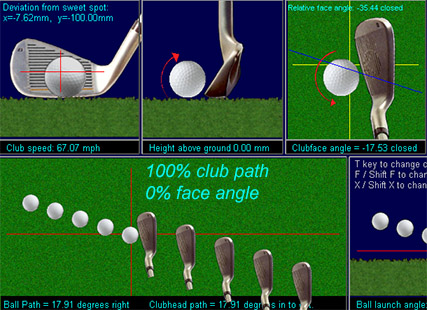
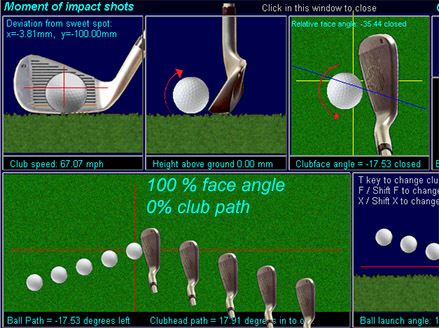
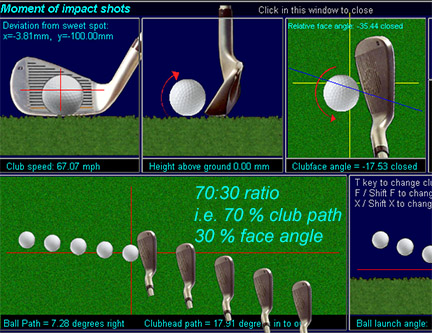
In reality the ball's path will be a certain percentage of both the club path and club face angle. In the real world this ratio varies somewhat from club to club and shot to shot so there is no hard and fast rule or setting.
The user should this ratio as he or she prefers. A 70:30 or 50:50 is recommended though.
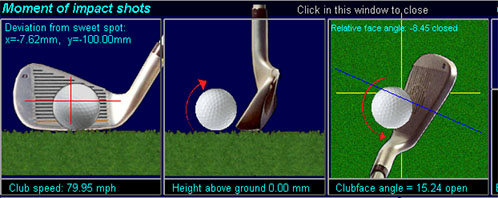
Ball position on club face using optical sensor mat
 -
-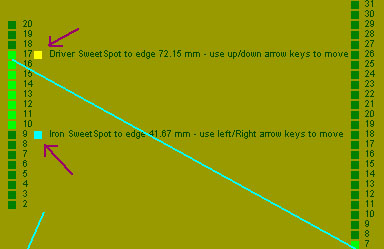
In order to determine this ball position we need to know the distance the sweet spot is from the outer edge of the club. As this distance will vary from club to club we made it user definable.
In order to keep things as simple as possible we're only using a user definable distance for irons and drivers at the moment.
( In ProX we had these distances for each club in the bag and for each club set but this proved to be too complicated for users to setup.)
In the Show sensors window of the CP you will see two new indicators. These should be set to the sweet spot distance from the outer edge of your driver and an average iron.
You can either measure this distance with a metric ruler or make a slow swing over the mat ensuring that you strike the ball exactly at the sweet spot and setting the new makers to the last latched front sensor.
Impact ball on club deviation from sweet-spot will be shown in the post shot analysis window.
Ball on club face position scaling factor.
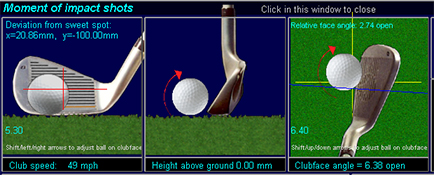
The After Shot swing analysis window now features a "Ball on club face" position scaling factor.
To adjust, hold the shift key down (a factor is then displayed) and use the arrow keys on your PC's keyboard to move the ball.
Use the up/down arrow keys for the top view club/ball image, left/right arrow keys for the club/ball image front view.
Test by playing shots striking the ball on the heel or toe of the club and comparing to the ball position images in the swing analysis window. Adjust accordingly if required.
Club loft adjustment

Club lofts can be changed with CP.
If you are using a GSA Golf system that doesn't measure ball launch angle (like the Ccam or PX2 stand alone systems) then the loft of the club will be used for the launch angle. The ability to change the CP's default club loft angles allows you to match them with your real clubs and/or adjust a launch angle to your normal angle of attack for a particular club type. i.e. if hitting on the down swing then decrease the the loft angle, if hitting on the upswing then increase the launch angle.
If using a system that does measure launch angle then this feature will allow you to fine tune the club attack angle calculations.
Adjustments are made direct in the CP's main window by selecting the club with the T or shift/T keys and then the loft angle with the K or shift/K keys.
The standard loft for each club is displayed next to the current loft angle.
Calculated ball spin adjustments
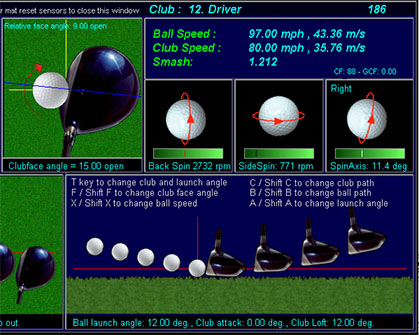
Setting up calculated ball spin adjustment factors is now a lot easier.
Ball spin adjustment slider bars now show new spin rates automatically. Use the slider bars to set to the desired spin rates.
Press any of the keys shown to adjust ball launch and club parameters to see what effect this has on ball spin.
GSA Control Panel main window buttons explained
1. Club fitter mode- used to show club and ball data only without any game software running
2. Camera - opens the Camera control window (if cameras are being used)
3. Show Sensors - shows the status of the optical sensors (only of interest if an optical system is being used, i.e. sensor mat or ball track)
4. Setup - opens the setup window. Use this to configure the system with whatever optical sensor or cameras are being used.
5. Exit - closes the GSA Control Panel
6. GSA / TGC / ProX / E6 radio buttons - used to select the type of game software
7. Show Club Angles - shows the after shot swing analysis window
8. Full Analysis on/off - when set on, a larger graphic swing analysis window will be shown after every shot
9. Carry adjust mode - when set on, carry distances can be adjusted for every club. (Note this function is now superseded by carry adjust features in the game application.
10. System Status - The status squares turn green for a few seconds after a swing. They show that the system has captured frames and club track and that the data is valid.
If any of these status squares are still red after a swing then this indicates an error
GSA Control Panel Setup window
f you have Sand and Rough panels set these two options on. The system will then calculate the launch angle from the positions you have set these in the Vcam window.
With camera ball tracking systems you won't need to adjust the carries for individual clubs so the De-activate Carry Factors should be on.
If you have a Sand Panel and play from that when the ball is in the Sand Trap the system won't pick up any valid club data. Switch the Allow ball launch with club data with SW on in this case.
The system won't normally launch a ball without valid club data being detected. If you are using a club tracking camera and want to use clubs
without club tracking reflective dots then switch the "Always allow ball to launch without club data" option on.
If club data is detected then it will be used but if not then the ball will fly anyway but the club data will be set to ball data. i.e. club path will be equal to ball path and club face angle will be set square relative to ball path.
Max (relative to path) calculated club face angle can be used to make the system more forgiving and easier to play for high handicap players. When set to a low number, hooks and slices will be reduced to draws and fades.
GSAGolf
GSAGolf requires the GSAGolf Control Panel program to run in parallel with it to communicate with GSA Sensor and Camera systems.
GSAGolf Control Panel is not normally visible during game play. It is a process that runs in the background.
GSA Golf Control Panel
GSA Golf Control Panel should be started before you launch GSAGolf. Once you have started GSA Golf Control Panel and the Setup is set correctly
and the sensor systems are connected and powered on, you should see a green cursor in the top left hand side of the screen.
This indicates that the system is running and communication with the GSA sensor systems is running correctly.
Click the Send Window Back pad button. This will reduce the size of the GSA Golf Control Panel and allow you to see your windows desktop.
Now start GSA Golf. (The GSA Control Panel will still be running in the background)
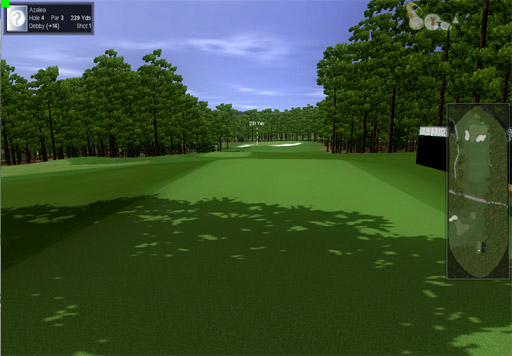
You are now ready to tee off.
Note the bright green cursor at the top left of the screen.
This indicates that all systems are running and the system is ready for the next shot.
This indicator will turn red briefly if any off the mat reset sensors are covered.
If the cursor remains red or is flickering then you need to investigate the cause by going back into the GSA Golf Control Panel.
Use the Alt/Tab keys on your PC keyboard to do this. Click the Send Window Back to get back to GSA Golf or use the Alt/Tab keys again.
-
GSAGolf should be run in windowed mode in order to allow screen window overlays from the interface.
The window is frame-less and when your screen resolution is also set to 1024 * 768 then it will look the same as full screen mode.
(for technical reasons it is not possible to run GSAGolf in Full Screen mode with screen overlays ).
Use the Alt/Tab keys or press the Send Window Back button in GSAGolf Control Panel to see the Windows Desktop in order to launch GSAGolf.
Use the Alt/Tab keys at any time during play to switch to the Interface and back to GSAGolf.
As with ProX, you need to setup the system correctly according to what sensor systems you have and what com port you are using.
For evaluation purposes you can also launch shots with the mouse via the Control Panel.
Note! If you encounter a windows error message stating that it could not find d3dx9_30.dll copy the supplied d3dx9_30.dll to the windows\System32 folder.
With the sensor mat connected to the PC you should then see the sensor mat detected message. After this, all shots should be recognized and balls will be launched in the GSAGolf program.
The GSAGolf Demo program is a full functioning version of GSAGolf that can be used with any GSA sensor mat and ball tracking systems but is limited to just one golf course.
The full version of GSA Golf comes with 85 plus golf courses with many more coming later.
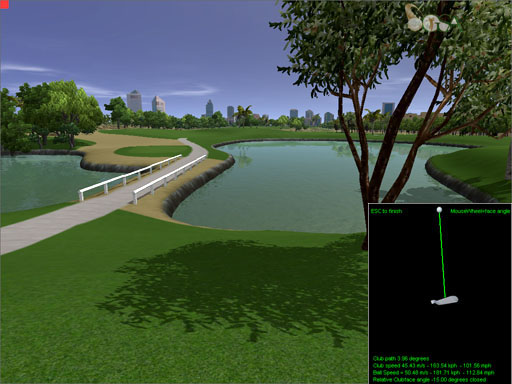
GSA Golf can also be played with the mouse. To do this, go into Game Mode.
Use the mouse to draw back the club and release to launch a ball.
Use the mouse wheel to alter the club face angle - drag left or right to alter the club head path.-
Note: If you encounter a windows error message stating that it could not find d3dx9_30.dll, when starting GSA Golf,
download and copy the d3dx9_30.dll to your windows\SysWOW64 & Windows\System32 folders.
Then start the GSAControlPanel program.
Starting GSAGolf Control Panel and GSAGolf with one desktop mouse click
GSA Golf Control Panel and GSA Golf are two processes that both need to be started before play.
Instead of manually starting both processes separately you can start both with one desktop icon mouse click using a batch file.
To create a batch file open the windows Notepad utility program - a basic text editor - and copy and insert the following text:
cd /d "C:\ProgramFiles\GSAControlPanel"
start GSAControlPanel.exe
cd /d "C:\ProgramFiles\GSAGolf"
start GSAGolf.exe
Depending on where you have installed the GSAGolfInterface and GSAGolf, replace the path text (ie "C:\ProgramFiles") with the path where you have installed the programs.
You can determine the paths by right clicking on the desktop icons and selecting Open File Path of both GSAControPanel and GSAGolf.
Save the notepad file with the name "GSAGolf.bat" (or any other name of your choice.)
Using the Windows Explorer, locate the new note pad file you have created (ie GSAGolf.bat), right click and select Create Link.
Then drag the new link to your Windows desktop. Test the link by double clicking on the new desktop link.
You should see that both programes start.
Ensure that the Win Start Back option has been selected in GSA Control panel so that GSA Golf Interface always starts in the Sent Back mode.
Testing your PC's graphics capabilities
Both the E6 and GSA Golf applications require a PC with a good graphics card to function correctly.
If not using our PCs then you might want to test your PC's graphics capabilities with these utility programs.
Download the OpenGL test program here
(download the installer version)
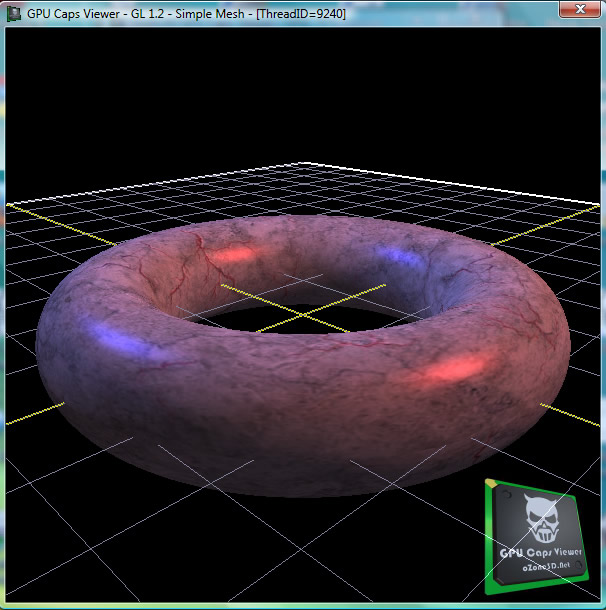
Run the program and at the bottom of the window you will see test samples. Select the last one - Simple Mesh - and you should then see this:
Testing the frame rate of your graphics card and PC with FRAPS.

This is a great way of seeing the fps rate of the game software (ProX, GSAgolf or E6) on your PC.
You'll need at least 24 fps for a smooth running game. If the fps is much lower than this then the rendering will seem jerky and slow.
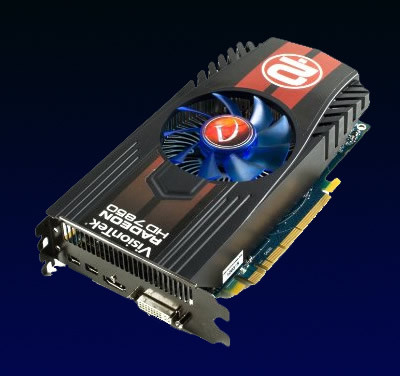
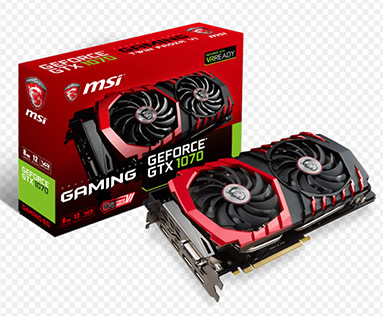
You'll need a good grahics card in your PC to run the game software at the required minimum frame rateof 24 fps. Especially E6 is very demanding and requires a high performance card.
The AMD Radeon HD 7850 is good at around $200.
Control Panel test frames
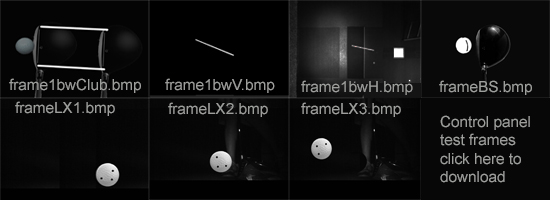
If you would like to experiment with Control Panel without hitting balls or you didn't purchase a system yet and would like to see how the CP can handle all the different shot parameters, you can download the above set of test frames and place them in system so that they are loaded in the various frame buffers.
All these images are in BMP format and should be placed in the "images" folder of the CP. If you start the CP without any cameras connected, these frames will be loaded into the system so that you can see the results of the image processing.
e.g. if you select CX4 in the CP's setup and then go to the Cameras window you should see that camera 1 detects the launch angle and speed of the ball, camera 2 the ball path, camera 3 the club tracking information and camera 4 the ball spin and spin axis.
If you select LX Pro 2, then camera 1 will show the first 2 frames of the ball, and camera 2 the third frame of the ball in flight.
Using Photoshop or any other good graphics program, you can edit the images to produce different results.
e.g. Rotate the Vcam's trace to produce different launch angles, shorten or lengthen the trace to produce different ball speed. Likewise, rotating and moving the spin dots on the balls in the LX images or Bcam image, will vary the spin rate and spin axis.
Note: Don't forget to always save the image files in BMP format and keep the same image size after editing the images.
Also note that this new feature is only available as of the current version of the CP i.e. version 8.1.0.2 or above.

During the support period we'll often want the user to send us screen shots of the Control Panel's windows.
Up until now, the PrintScreen button on the PC's keyboard has always worked just fine for us but a number of customers have reported that grabbing screens of the CP with this keyboard button does not work.
That didn't make much sense to us and so just assumed it was something on the customers PC preventing this.
It was just by accident that we started a release version (instead of the debug version) of the CP today and wanted to take a screen shot. And, lo and behold, it didn't work!
A big difference between the debug version and the release version is that the CP's window is not on top of other windows. (which in the release version was meant for post shot analysis overlays).
Switching this feature off in the release version then fixed the problem. Only the Gods at Microsoft would know why, when a window is set on top, the PrintScreen doesn't work but at least it's fixed now.
I have therefore added an option in the CP's Setup window called "Control Panel not on top of other windows". Switch this option on if you want to make screen shots in the CP.
Note: Pressing the "PrintScreen" or "PrtScr" just puts the screen in the windows clipboard. You still have to "paste" it into Paint or another graphics tool to see and save it.
Need Support?
If you have questions or require support please e-mail and we will get back to you within 24 hours.
Cameras
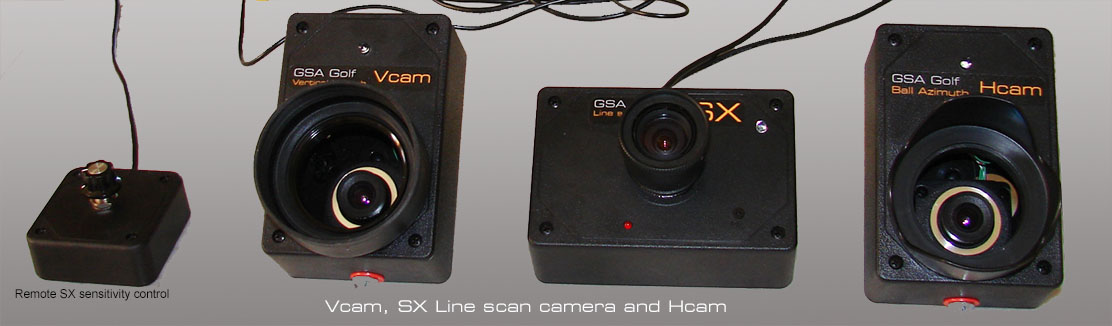
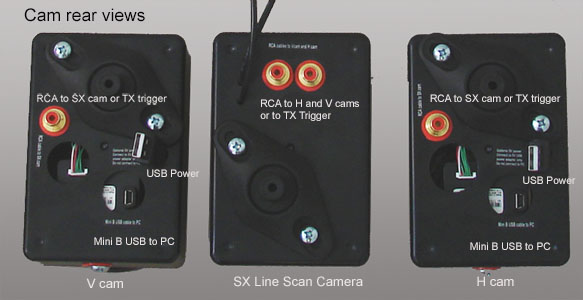
Click the above images to read about camera installation

 Home
Home Sensors
 Cameras
 Software
 Enclosures
 GSA Courses
 E6 Courses
 Business
 Tech News